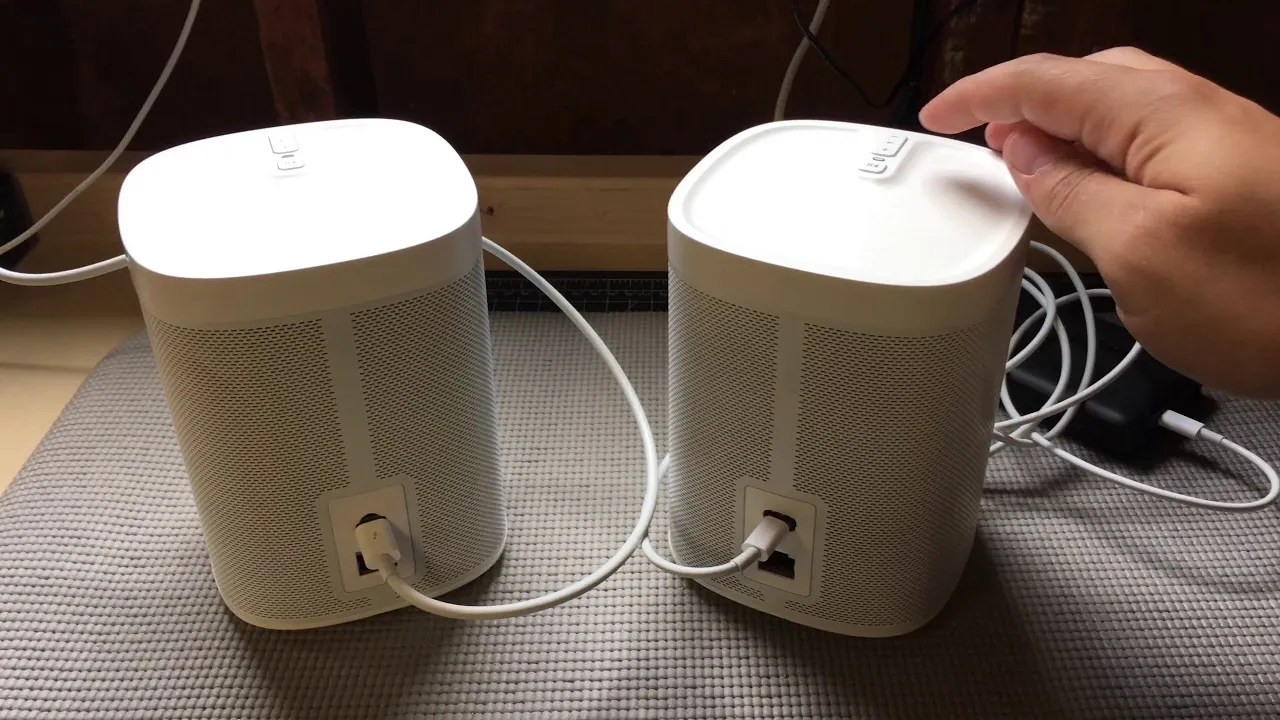
USB-C Sonos Play:1 · 2019 Adding a USB-C port to my Sonos and running it off a battery pack.
Updated
A few summers ago we were spending more and more time out in the yard, and I wanted to keep the music in the Sonos family out there too. My first surprise was that Sonos didn’t make a battery-powered speaker at all. I’d assumed that with cheap Bluetooth speakers everywhere, there’d be a high-end one. Nope. No battery dock or add-on, either.
Then I found James Callaghan’s  battery-powered Play:1. He added a USB port and a boost converter to run it from a 5-volt battery pack, but the converter held back the maximum volume. So I had an idea: USB-C Power Delivery can supply 20 volts, and a tiny trigger board (often sold as a “PD decoy”) asks the charger or battery pack for exactly that.
It works perfectly. On a 26,800 mAh pack my Play:1 plays for most of a day, and it gets way louder than is comfortable to listen to. I liked it so much I made two.
Sonos has since made battery speakers of its own, the Move and the Roam. This is for a Play:1 you already have, or one you find secondhand. I filmed a short video of it running, which you can find on  YouTube.
Opening the Play:1 voids whatever warranty it has left, and there’s a mains power supply inside. Unplug it before you start, wait a minute for the power supply’s capacitors to drain, and leave it unplugged until it’s closed up again. Be careful, take your time, and I’m not responsible for bricked Sonoses 🙂
What you need
Parts
- Sonos Play:1
- USB-C Power Delivery trigger board, 20 V ·
 Amazon
 - Red and black 24 AWG silicone wire, about 15 cm each
- Heat-shrink tubing, hot glue, and electrical tape
- USB-C Power Delivery battery pack or charger that offers 20 V · Amazon
Tools
- Torx T6, T9, and T10 screwdrivers
- A spudger or a thin flat screwdriver
- A soldering iron
- A drill with a 3/8-inch bit and a little WD-40, held in a vise
- A rotary tool such as a Dremel
- A hot glue gun
- A spare USB-C cable
1. Take off the base and the grille
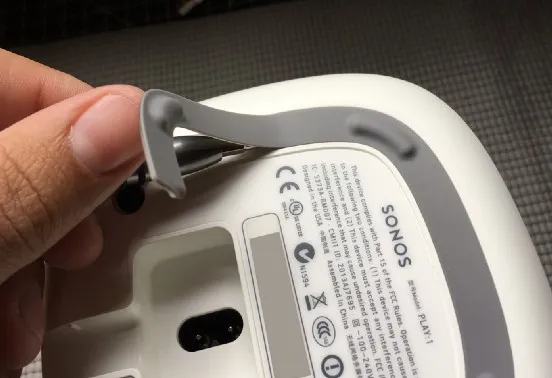
Turn the Play:1 upside down. Peel off the rubber foot strip with a spudger or a thin screwdriver. Go slowly so the adhesive survives: done carefully, the strip goes back on looking brand new.
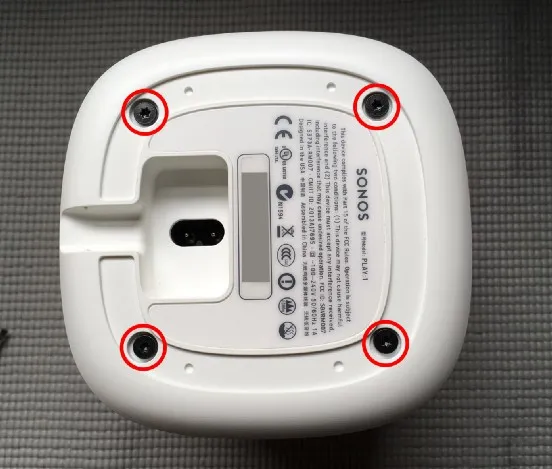
Remove the four T10 screws from the base, then lift the base straight off.
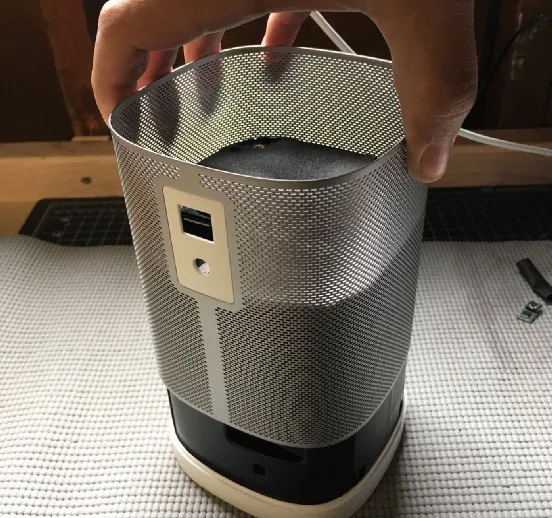
Slide the metal grille straight up and off. You may need to squeeze its sides a little to clear the Ethernet port and the grounding lug.
2. Take off the top cover
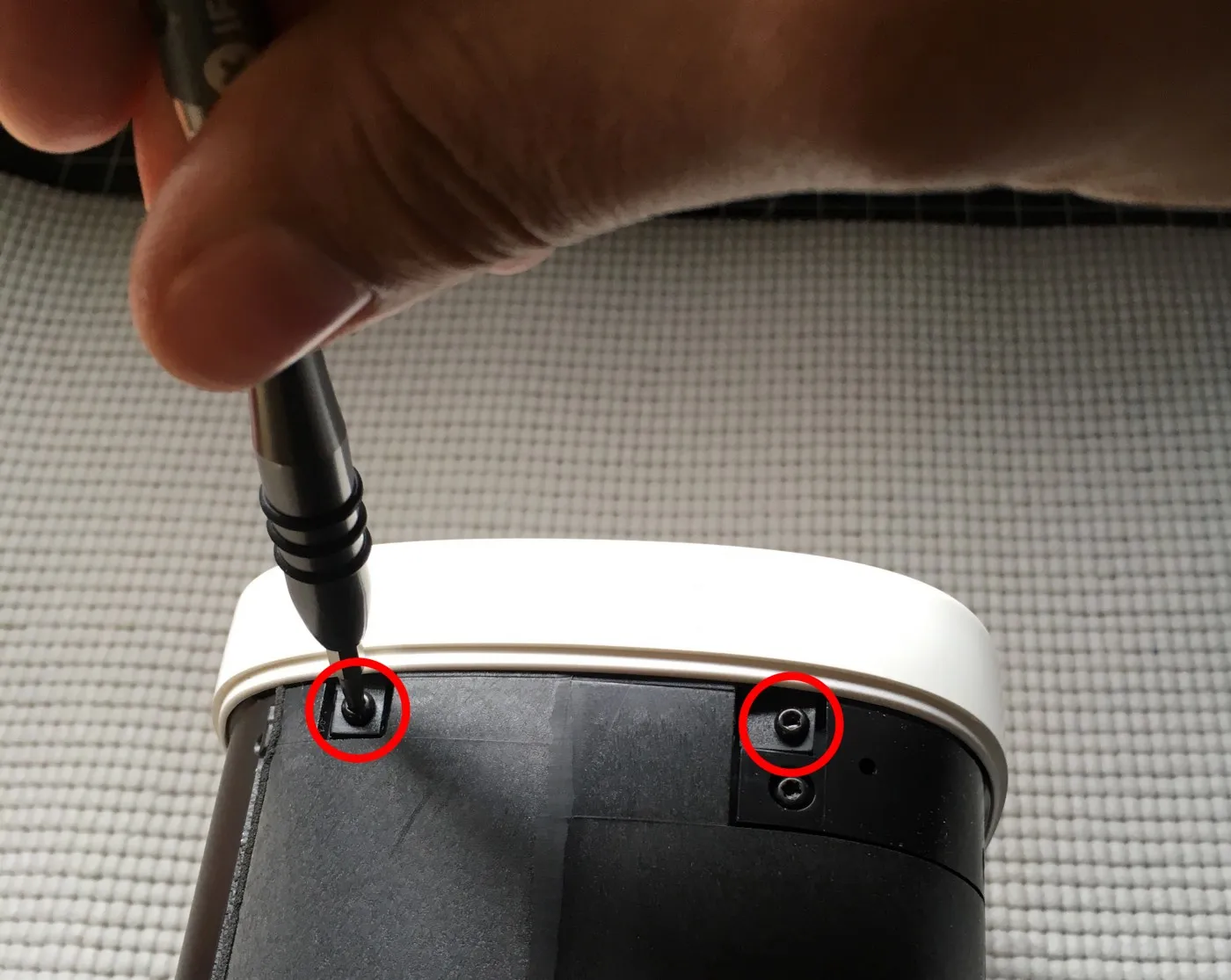
Turn the speaker the right way up and remove the four T9 screws from the sides of the top cover.
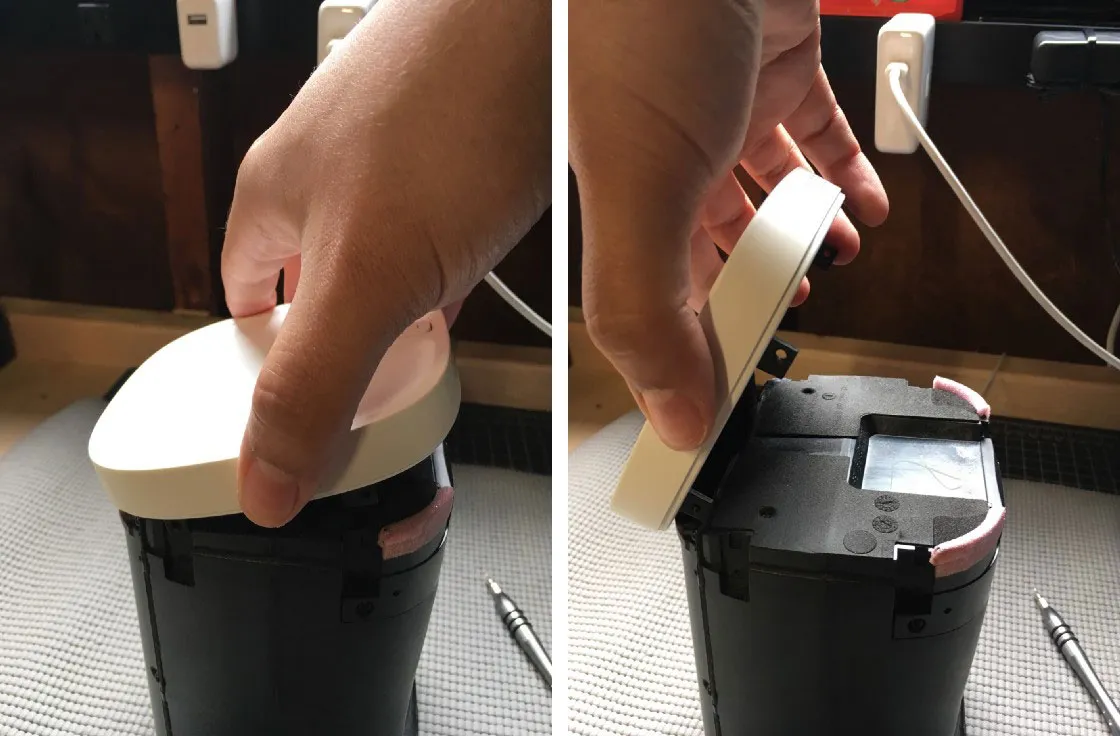
The cover is held on tightly by foam and a little adhesive. Ease it loose rather than pulling hard: a fragile ribbon cable joins the cover’s buttons and status light to the speaker. Once it’s free, tilt it up toward the back, away from the speaker.
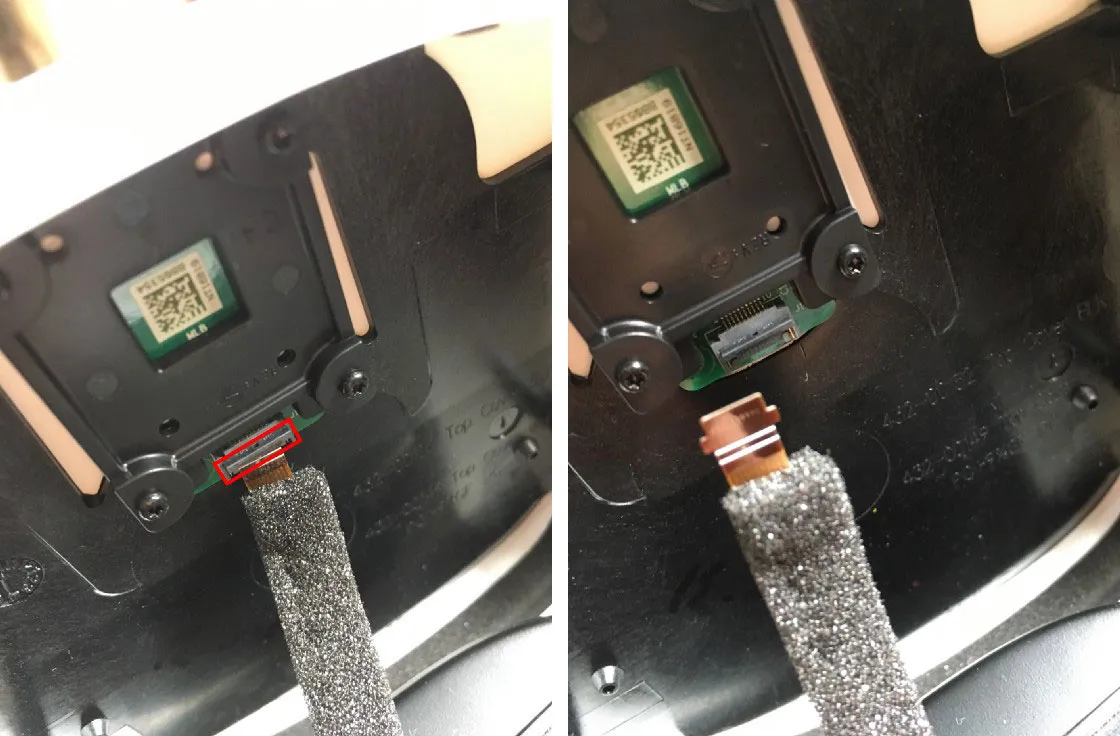
Swing open the small plastic flap that holds the ribbon cable, and the cable falls out. Set the cover aside.
3. Open the rear cover
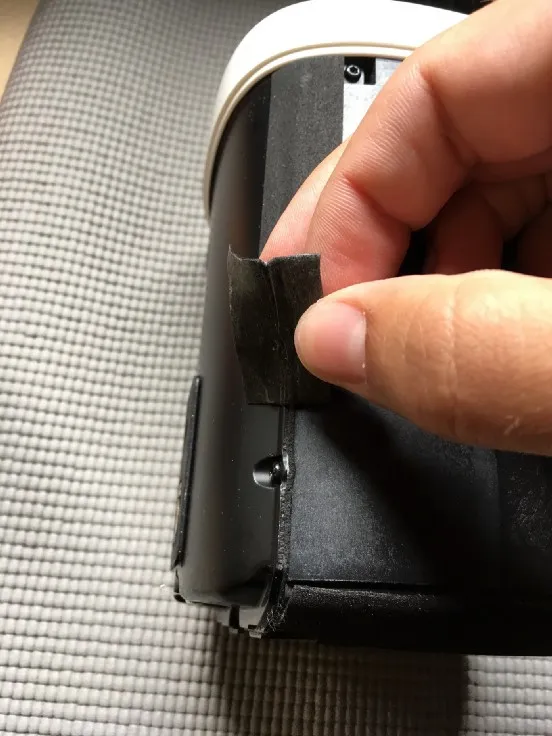
Lay the speaker on its front, speaker side down. Slowly peel off the foam tape along each side of the rear cover. It tears easily, but it can come off in one piece; keep it for reassembly. If it tears, piece it back together later or use vinyl electrical tape instead.
Remove the six T9 screws from the rear cover and ease it a few millimetres away from the speaker. Don’t pull it further yet: two cables still join the halves.
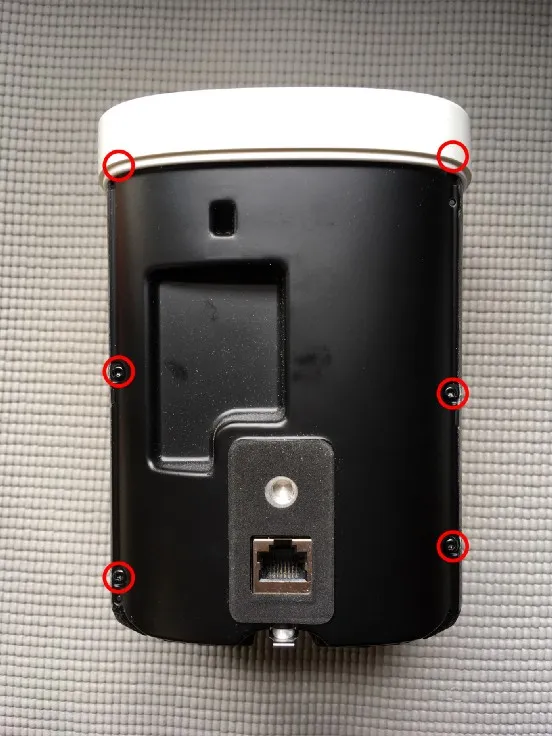
Unlatch the speaker cable near the top of the rear cover with your fingers. Then fold the rear cover down, so its bottom edge rests against the inside of the speaker.
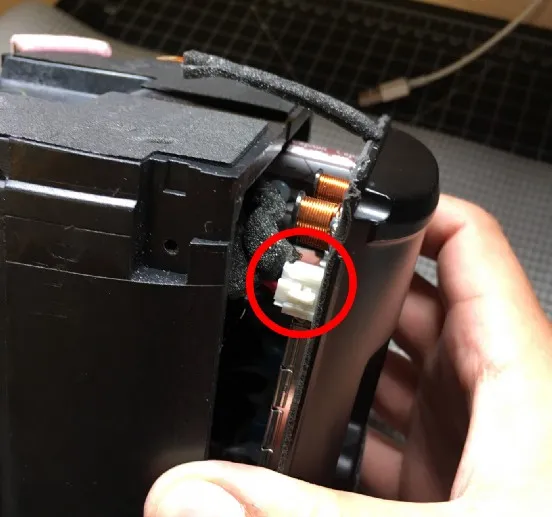
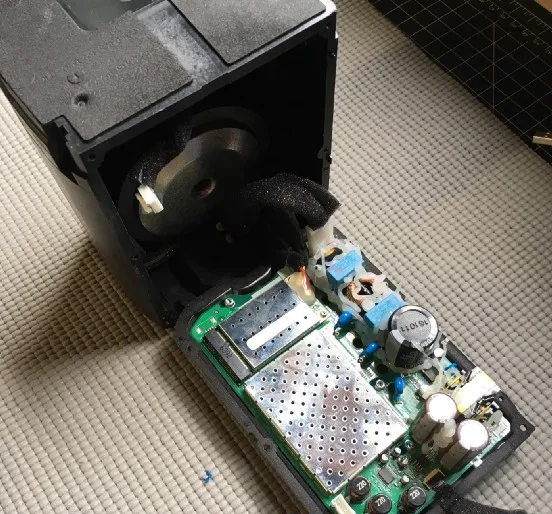
Unlatch the power cable near the bottom of the rear cover.
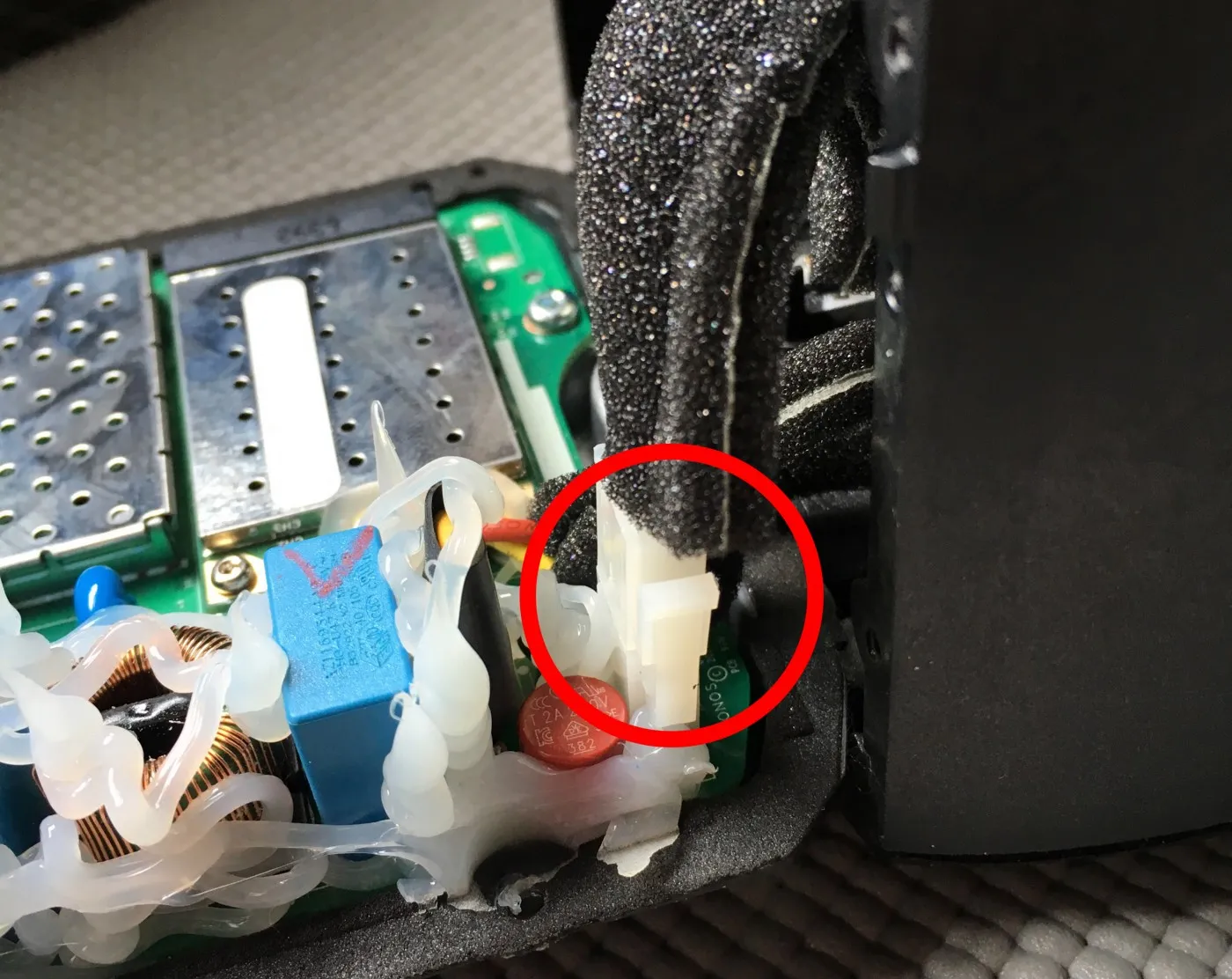
4. Take out the Wi-Fi card and the main board
Remove the two T6 screws holding the Wi-Fi card. If they’re covered in hot glue, carefully cut it away first. Pull the card straight out of its connector.
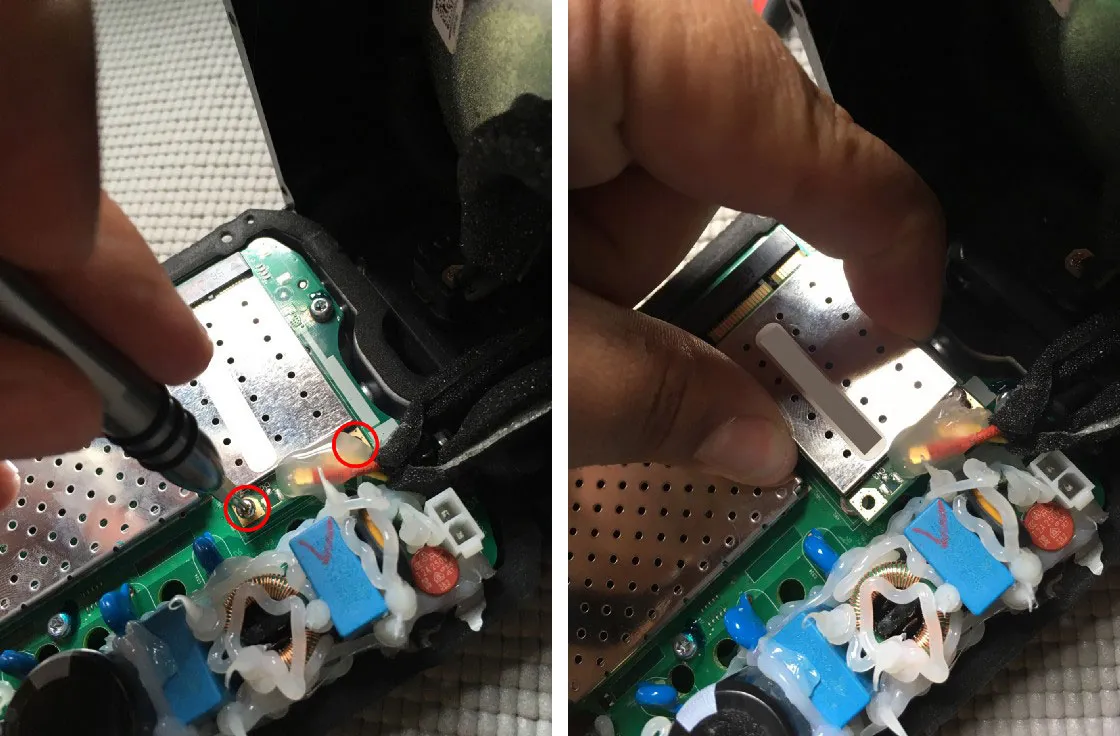
Remove the six T10 screws holding the main board to the rear case, and ease the board out. Don’t touch the thermal pad on the back of the heatsink.
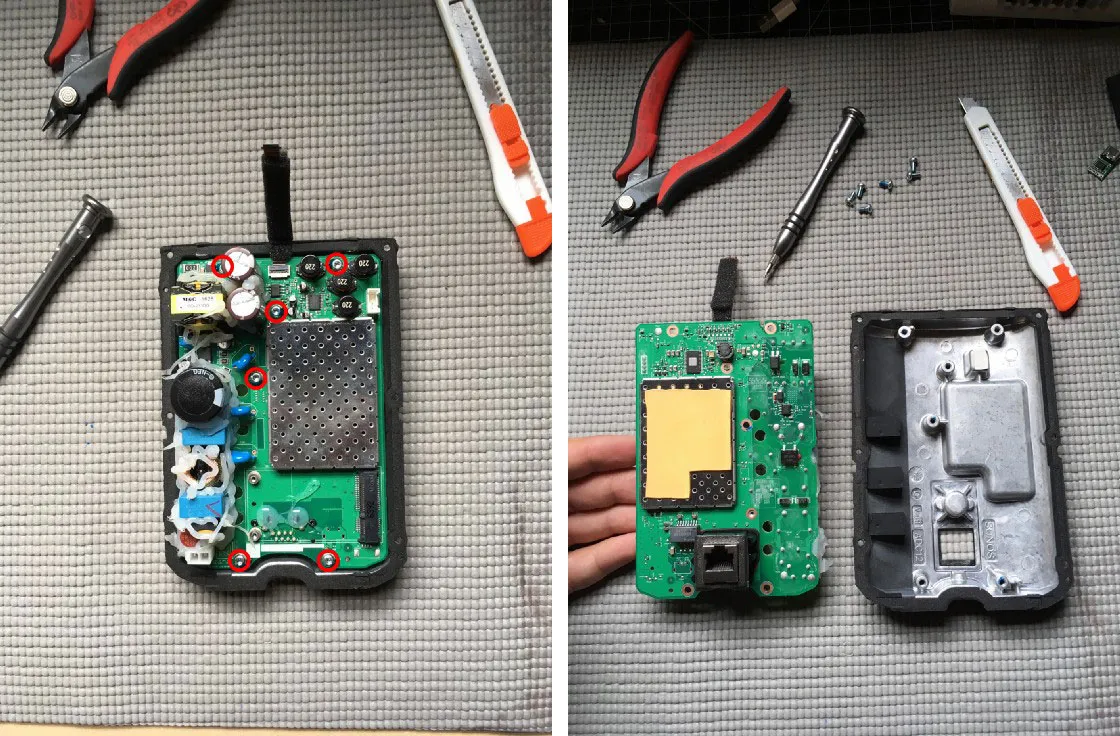
5. Wire the USB-C board
The board I link above has a small switch that sets its voltage. Set it to 20 V before anything else (switch 2 on, switches 1 and 3 off; the table on its back lists every setting), because the heat-shrink covers it later.
Cut 15 cm each of red and black wire, and strip about 5 mm from each end. I like silicone wire for this: it’s flexible and easy to route.
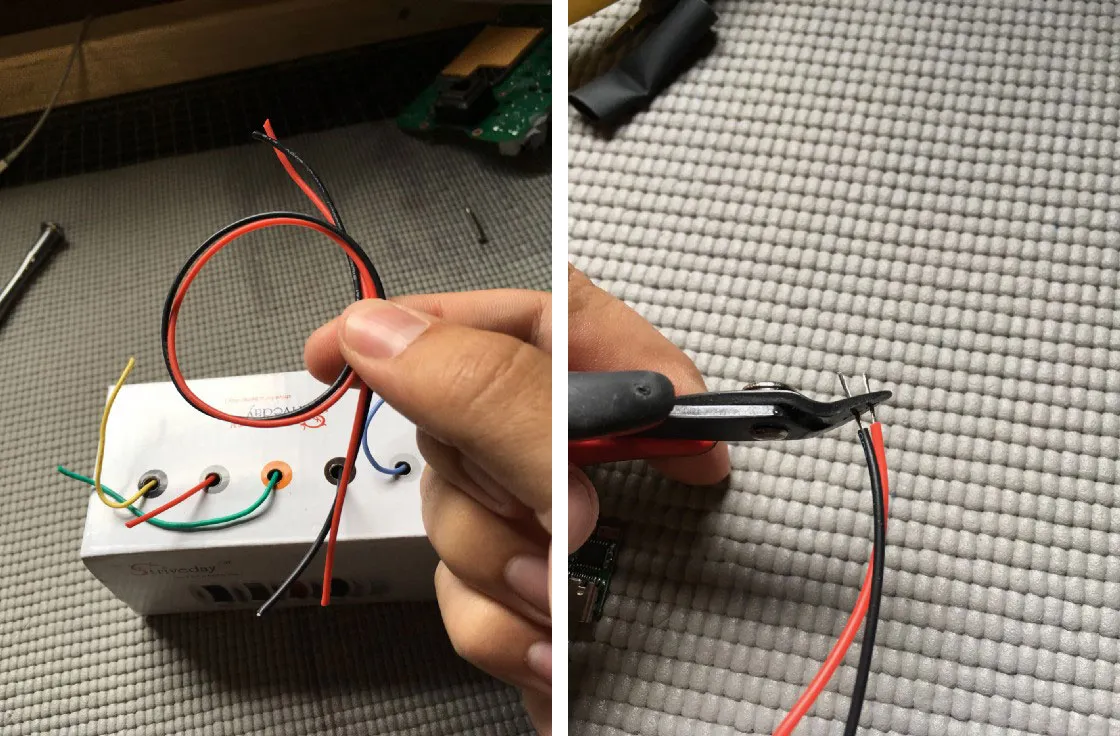
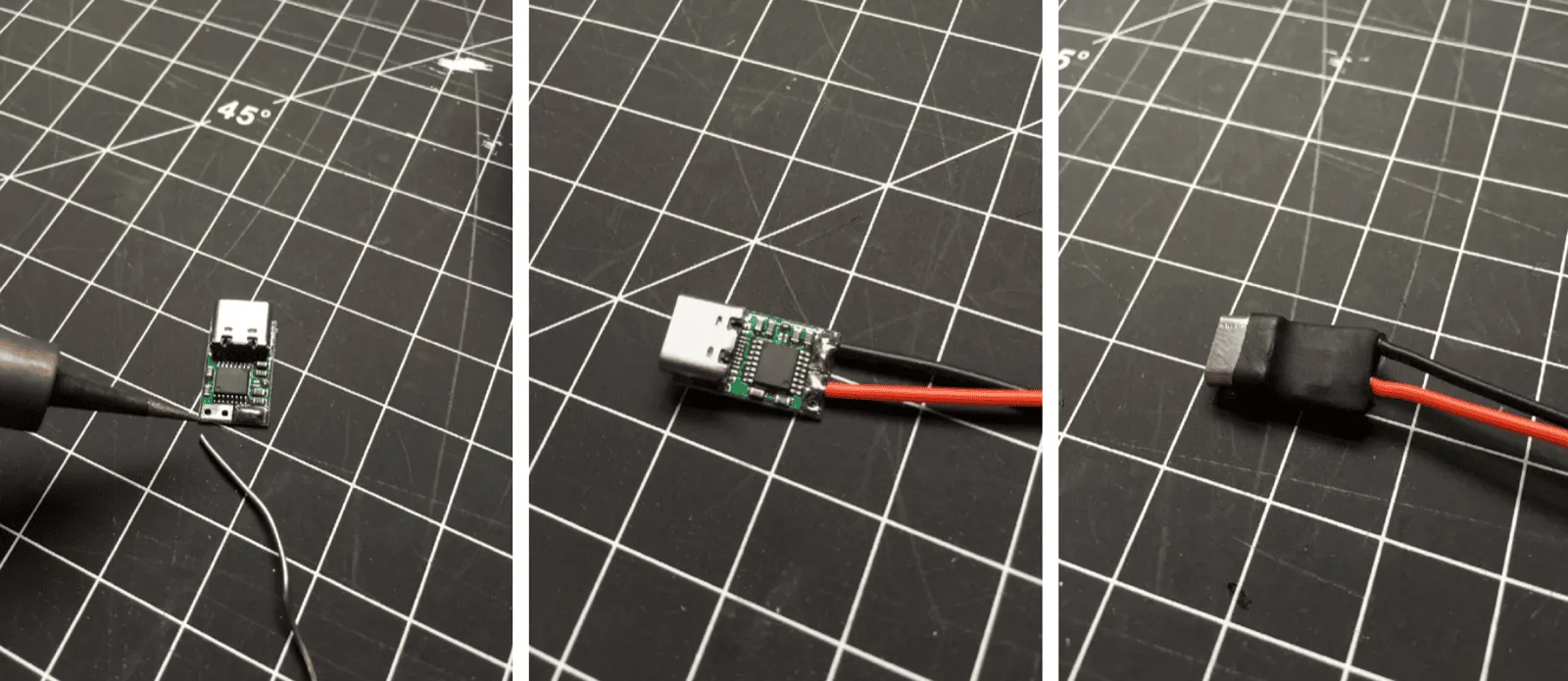
Tin the trigger board’s positive (VCC) and negative (GND) output pads and the ends of the wires. Solder red to positive and black to negative, then slide heat-shrink tubing over the board and shrink it down.
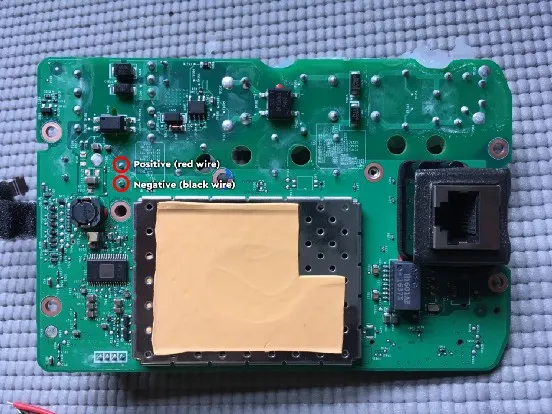
Solder the other ends to the DC power pads on the back of the main board, marked in the photo: red to positive, black to negative. Run the wires down toward the Ethernet jack and tape them in place.
6. Make a hole for the port
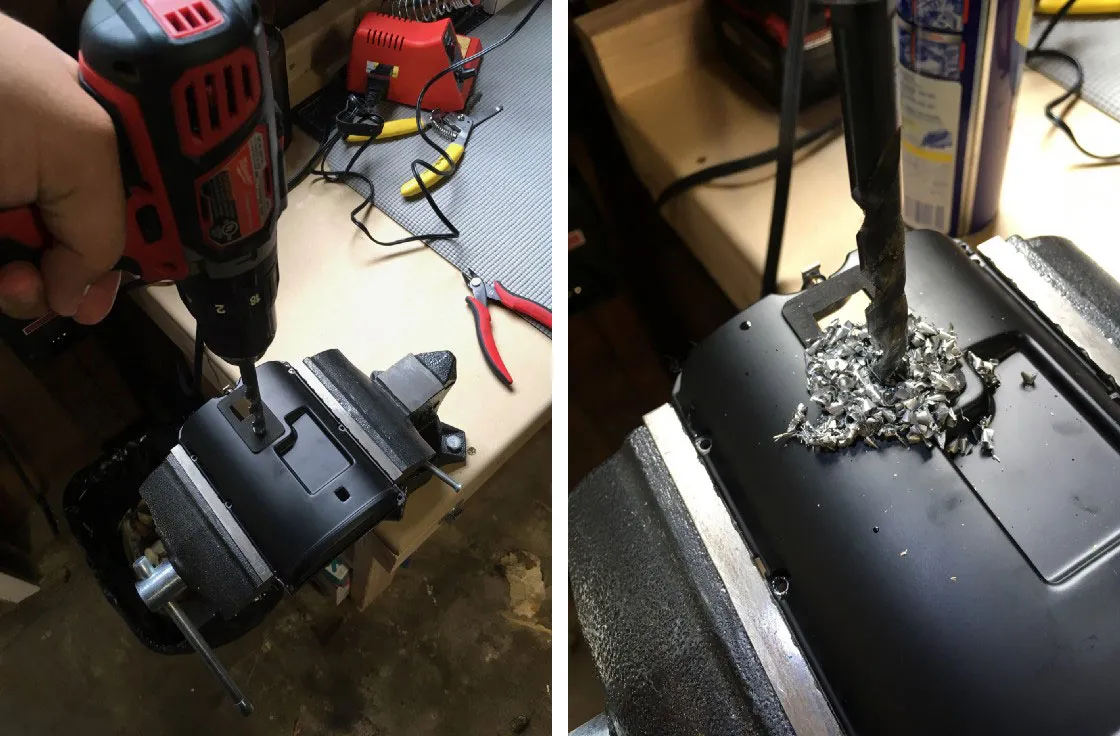
The rear case has a threaded mounting point just above the Ethernet port, the round fitting in the photos above. Drilled out, it’s just the right size for the USB-C port, and the grille is already open there, so nothing else needs cutting. It does mean giving up the wall-mount point, but I never mount my Sonos speakers anyway.
Clamp the rear case in a vise and drill the mounting point out with the 3/8-inch bit, with a little WD-40 as cutting fluid. Go slowly and let the drill’s weight do the work until it breaks through. Then clean up every metal shaving and all of the WD-40: a stray shaving can short out the electronics.
7. Fit the port
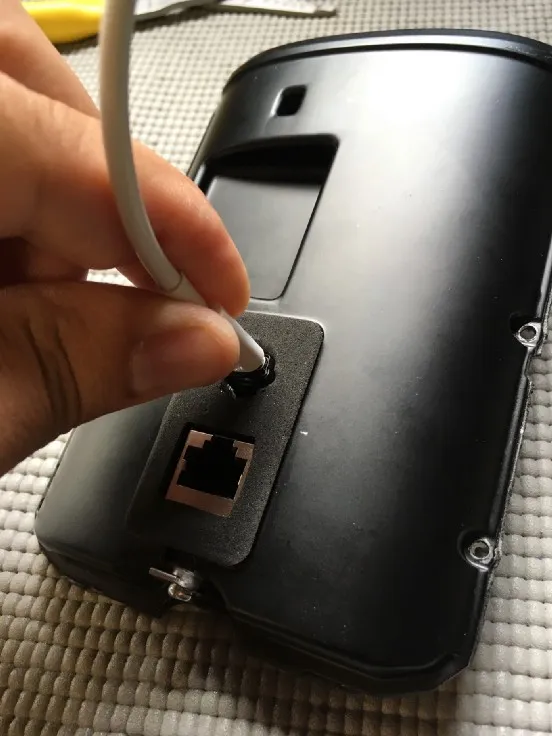
Push the USB-C connector through the new hole from the inside. Plug the spare USB-C cable into it from outside to hold it centred, and set the main board back in the rear case to check that everything clears. Fill the gaps around the connector with hot glue from the outside, and once that has set, from the inside too. Trim the outside glue flush with the foam.
8. Put it back together
Reassemble the Play:1 in reverse: the main board, the Wi-Fi card, the power and speaker cables, the rear cover, and its foam tape. Reconnect the top cover’s ribbon cable and set the cover back in place; its four screws can wait until after the test. This is the moment of truth. Plug a USB-C charger or battery pack into the new port. A white status light means it works.
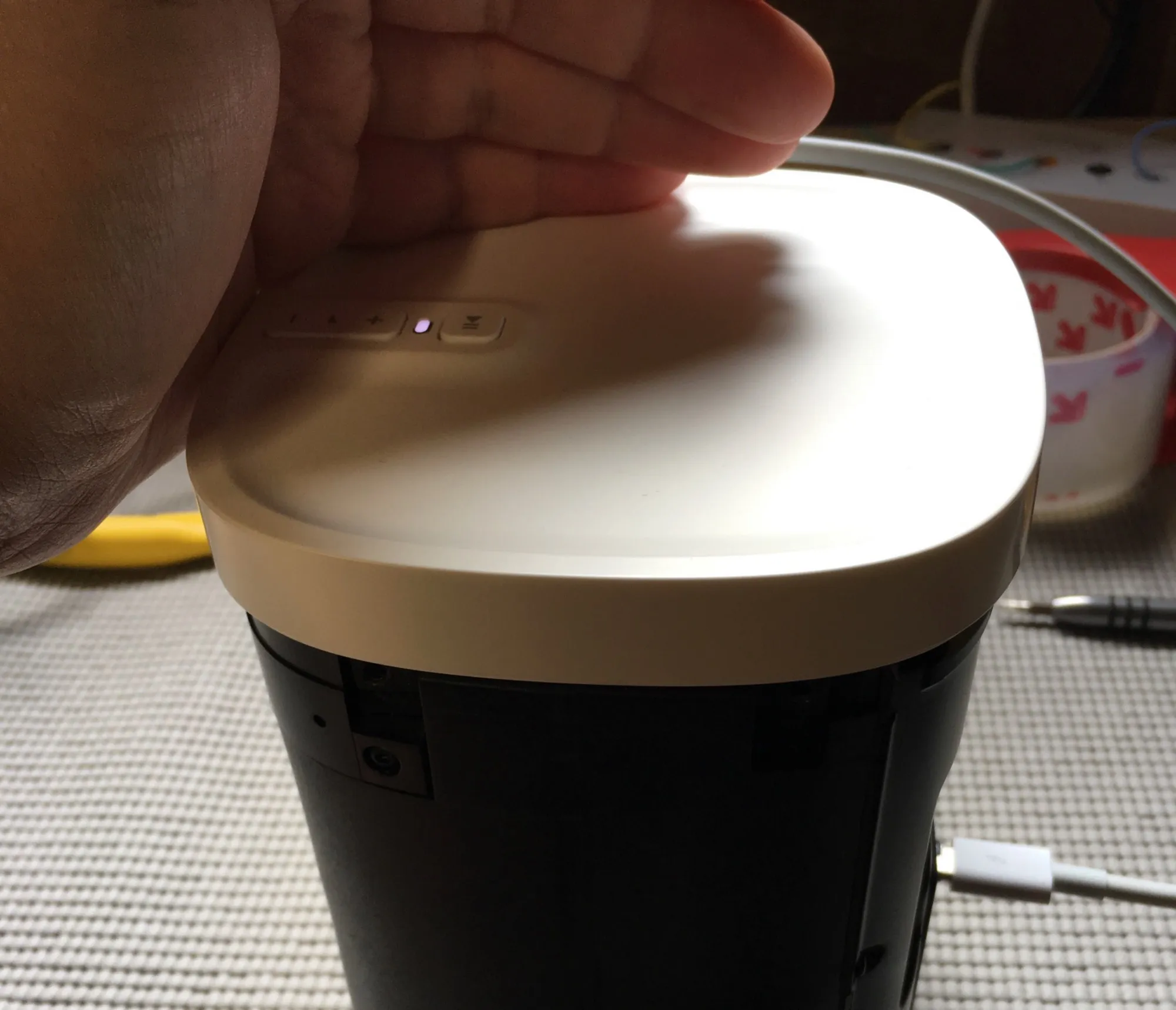
The port is slightly larger than the opening in the plastic around the old mounting point. Widen that opening a little with the rotary tool where the port lines up. Mine didn’t turn out as clean as I’d hoped, but it’s on the back, where nobody really sees it. Then screw the top cover down and put the grille, the base, and the foot strip back on.
Optional: paint the grille
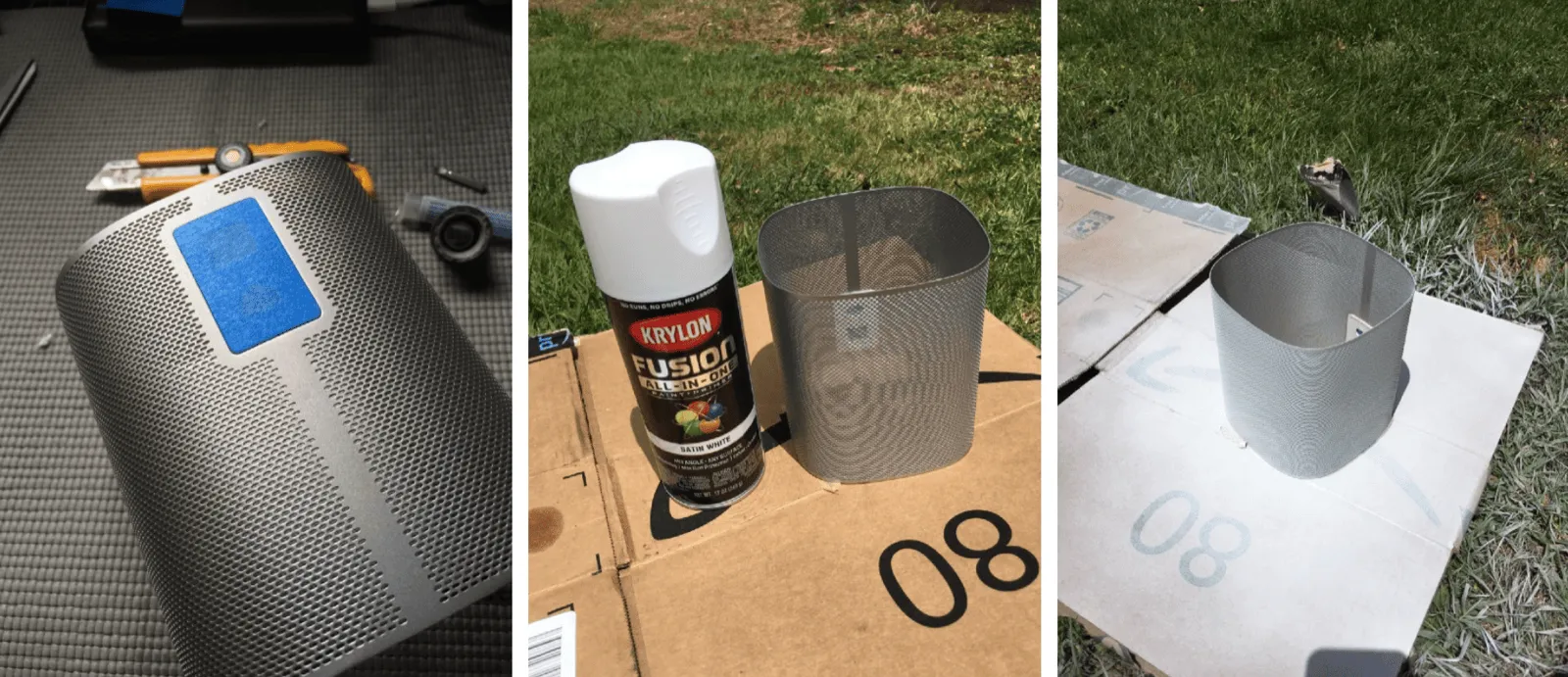
The white Play:1’s grille is actually silver-grey. I painted mine to match the Sonos One in my living room, and Krylon Fusion All-In-One in white matches it almost perfectly. Paint it while it’s off the speaker.
Using your Sonos
Plug in any USB-C Power Delivery battery pack or charger that offers 20 V. The Play:1 behaves as it always did, and it gets loud.
The mains cable still works too, but use one or the other, never both at once: both would drive the same pads, which can damage the trigger board, the battery pack, or the speaker.
The Play:1 doesn’t support AirPlay on its own. I set up  AirConnect, a free bridge, on my Synology NAS, so both of mine show up as AirPlay speakers on iPhones and Macs.
Thanks
- James Callaghan’s battery-powered Play:1, the first version of this idea
- iFixit’s
 Sonos Play:1 motherboard replacement guide, for the teardown
 - /u/Candlejaack, who
 painted a Play:1’s grille white first
As an Amazon Associate I earn from qualifying purchases.